
If you’ve been searching for a step by step guide to speed up slow laptops, I feel your frustration. That spinning wheel, the 45-second boot time, the lag when you just want to open a browser. I’ve been there with my own aging ThinkPad, and I nearly threw it out a window before I figured out what actually works. These are the exact fixes I used, in order, to bring my laptop back from the dead.
Start With a Full Restart (No, Really)
Before you roll your eyes, hear me out. Most people never actually shut down their laptops. They close the lid, the machine sleeps, and weeks of cached processes pile up like dirty dishes. A proper restart clears your RAM and kills background processes that have been silently eating your resources.
On Windows, click Start, then Power, then Restart. Don’t choose “Shut down” because Windows 10 and 11 use Fast Startup by default, which doesn’t fully clear everything. A restart does. On macOS, hit the Apple menu and click Restart. I do this every two or three days now, and the difference is noticeable within seconds. If your laptop has been “on” for two weeks straight, this alone might buy you a surprising amount of speed.
Clean Up Your Startup Programs
This one fix made the single biggest difference on my laptop. I had 23 programs launching at startup. Twenty-three. No wonder it took over a minute to become usable after booting up.
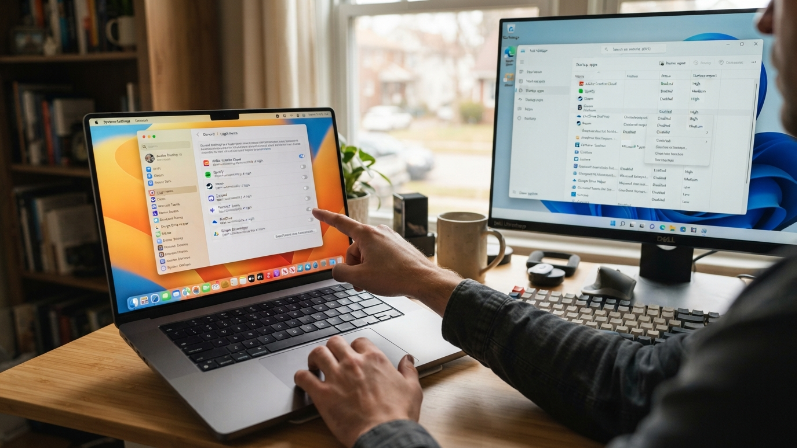
On Windows 11, right-click the taskbar and open Task Manager. Click the Startup Apps tab. You’ll see a list of everything that loads when you turn on your machine, along with its impact rating. Disable anything you don’t need immediately at startup. Spotify, Discord, OneDrive, Steam, Adobe Creative Cloud, all of these can wait until you actually open them.
On a Mac, go to System Settings, then General, then Login Items. Remove anything unnecessary. I kept my antivirus and nothing else. My boot time dropped from over 60 seconds to about 18. That’s not an exaggeration.
Uninstall Software You Don’t Use Anymore
Your hard drive is probably full of programs you installed once, used for five minutes, and forgot about. Each one takes up storage space, and some run background processes you never see.
On Windows, go to Settings, then Apps, then Installed Apps. Sort by size. You’ll probably find a few surprises in there. I found an old video editor taking up 4GB that I hadn’t touched in two years. On macOS, use an app like AppCleaner to fully remove applications along with their hidden support files, because dragging an app to the trash doesn’t always get everything.
Be ruthless here. If you haven’t opened it in six months, get rid of it. You can always reinstall later if you need it.
Free Up Disk Space
When your storage drive gets above 85% capacity, things slow down noticeably. Your operating system needs free space to write temporary files, manage virtual memory, and perform updates. A nearly full drive is like trying to cook in a kitchen with no counter space.
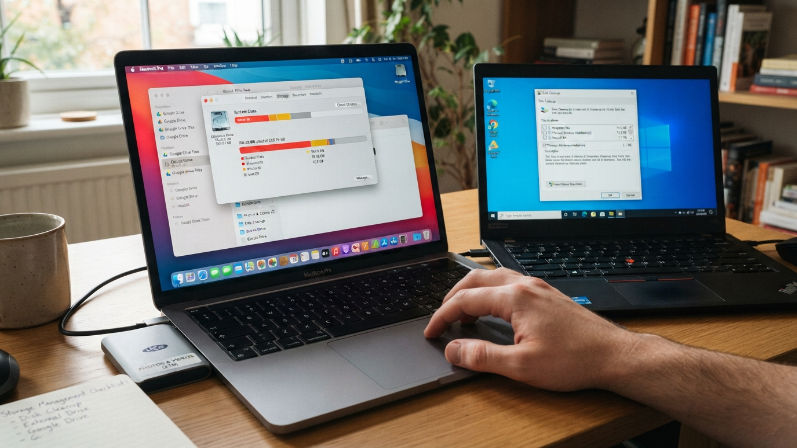
On Windows, type “Disk Cleanup” in the search bar and run it. Check all the boxes, especially “Temporary files” and “Previous Windows installations” if that option appears. That last one alone can free up 10 to 20GB after a major update.
On Mac, click the Apple menu, then About This Mac, then Storage, then Manage. The system will recommend files to review, including large attachments and old downloads.
I also moved my photos and videos to an external drive and started using Google Drive for documents I don’t access daily. That cleared nearly 60GB on my main machine.
Check for Malware and Bloatware
A slow laptop sometimes isn’t just old or cluttered. Sometimes something is actively dragging it down. Malware running in the background can eat CPU cycles and bandwidth without any visible sign.
Run a full scan with Windows Defender (it’s built in and honestly pretty solid now) or Malwarebytes, which has a free version that catches things Defender sometimes misses. On Mac, Malwarebytes also works well.
If your laptop came from a manufacturer like HP, Dell, or Lenovo, it probably shipped with preinstalled software you never asked for. Trial versions of McAfee, random utilities, branded “helper” apps. Remove all of it. These programs run at startup, push notifications, and consume resources for zero benefit.
Adjust Your Power Settings
This one catches a lot of people off guard. Your laptop might be running in a battery-saving mode that intentionally throttles performance. If you’re plugged into power and still experiencing lag, your power plan is probably the culprit.
On Windows, go to Settings, then System, then Power & Battery. Under Power Mode, switch it to “Best Performance.” You can also search for “Edit Power Plan” in the Control Panel and make sure your processor is set to run at 100% when plugged in.
On a MacBook, go to System Settings, then Battery, and disable Low Power Mode. I once spent an entire afternoon troubleshooting my wife’s MacBook Air only to realize Low Power Mode had been turned on accidentally. The fix took three seconds.
Upgrade Your RAM
If your laptop has 4GB of RAM and you’re running Windows 11 or multiple Chrome tabs, you’re asking it to do something it physically can’t handle well. RAM is where your computer stores information it’s actively using, and running out of it forces the system to use your much slower hard drive as overflow.
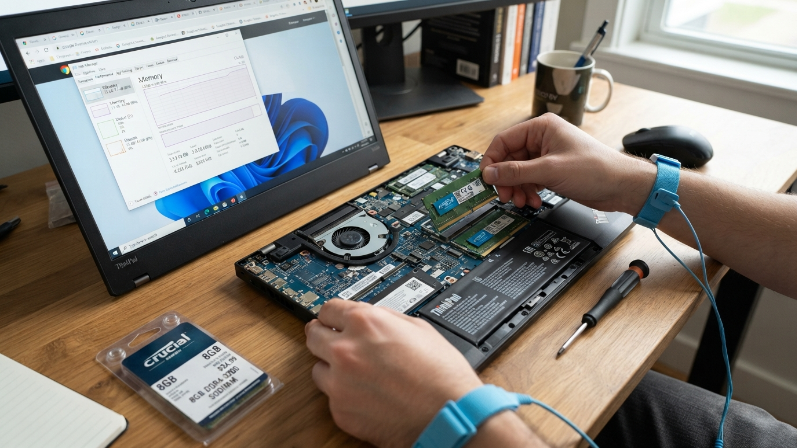
Check your current RAM by opening Task Manager on Windows (Ctrl + Shift + Esc) and clicking the Performance tab. If you’re consistently using 80% or more during normal tasks, you need more.
Many laptops let you upgrade RAM yourself. I added an 8GB stick to my ThinkPad for about $25 from Crucial.com, and the whole process took 10 minutes with a single screwdriver. Check your laptop model on Crucial’s website or YouTube for a walkthrough before buying. Some ultrabooks have soldered RAM that you can’t upgrade, so verify first.
Switch to an SSD
If your laptop still uses a traditional spinning hard drive (HDD), this is the single most dramatic upgrade you can make. I’m not exaggerating when I say switching to an SSD made my 2017 laptop feel brand new.
A SATA SSD like the Samsung 870 EVO or Crucial MX500 costs around $40 to $60 for 500GB. You can clone your existing drive using free software like Macrium Reflect or Clonezilla, so you don’t have to reinstall Windows from scratch.
Boot times go from over a minute to under 15 seconds. Apps open almost instantly. File transfers that used to take minutes finish in seconds. If you only do one hardware upgrade from this entire step by step guide to speed up slow laptops, make it this one.
Update Your Operating System and Drivers
Outdated software doesn’t just miss security patches. It also misses performance optimizations that can make a real difference. Windows updates sometimes include fixes for memory leaks and CPU bugs that have been slowing things down behind the scenes.
On Windows, go to Settings, then Windows Update, and install everything available. After that, open Device Manager and check for driver updates, especially for your graphics card and chipset. You can also go directly to your laptop manufacturer’s support page and download the latest drivers for your specific model.
On Mac, go to System Settings, then General, then Software Update. Apple tends to bundle performance improvements into macOS updates more consistently than people realize.
I update my drivers manually every couple of months, and it’s caught a few issues that automatic updates missed entirely.
Turn Off Visual Effects
Windows loves its animations, transparency effects, and smooth scrolling. They look nice, but on an older or slower machine, they’re stealing resources from tasks that actually matter.
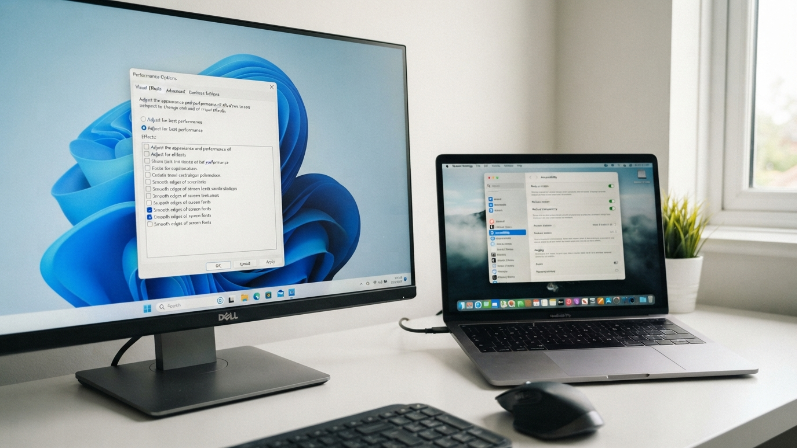
On Windows, search for “Adjust the appearance and performance of Windows.” In the dialog box that opens, select “Adjust for best performance” to turn off all visual effects at once. If that looks too harsh, go back and re-enable “Smooth edges of screen fonts” because text looks genuinely terrible without it.
On macOS, go to System Settings, then Accessibility, then Display, and enable Reduce Motion. Also toggle on “Reduce transparency.” These two changes alone made my older MacBook Pro feel noticeably snappier when switching between apps.
Keep Your Browser in Check
Your browser is probably the most resource-hungry app on your machine. Chrome is notorious for eating RAM like it’s at a buffet. Each tab is basically a separate process, and 15 open tabs can easily consume 4GB of memory.
Install an extension like The Great Suspender or Auto Tab Discard to automatically pause tabs you haven’t looked at in a while. Better yet, close tabs you’re not using. I know, easier said than done.
Also, review your browser extensions. Each one runs in the background and adds load. I removed seven extensions I’d forgotten about and my browser started almost twice as fast.
If Chrome is your main browser and your laptop is struggling, give Firefox or Microsoft Edge a try. Edge in particular uses significantly less RAM on Windows machines, and it’s built on the same Chromium engine as Chrome so the experience feels familiar.
Frequently Asked Questions
How often should I restart my laptop to keep it running fast?
I restart mine every two to three days, and that keeps things smooth. If you’re a heavy user with lots of apps open daily, a daily restart helps even more. It clears out temporary files and resets processes that slowly consume memory over time. It’s the simplest habit that makes a real difference.
Is upgrading RAM or switching to an SSD more important?
If you’re choosing one, go with the SSD every time. The speed difference between a hard drive and an SSD is massive, often making an old laptop feel five years newer. RAM matters too, but the SSD upgrade delivers the most dramatic, immediately noticeable improvement for the money.
Can a step by step guide to speed up slow laptops help older machines?
Absolutely. My main test machine was a 2017 ThinkPad, and these fixes brought it back to life. Older laptops benefit the most from startup cleanup, SSD upgrades, and removing bloatware. You won’t get gaming-PC performance, but for everyday browsing, email, and document work, an older laptop can feel surprisingly capable again.
Do I need to pay for optimization software?
No, and I’d honestly avoid most of it. Programs like registry cleaners and “PC optimizers” often do more harm than good. Everything you need is already built into Windows or macOS. Free tools like Malwarebytes for security and Macrium Reflect for drive cloning are the only extras I recommend.
Why does my laptop slow down even when I’m not doing anything?
Background processes are almost always the answer. Windows Update, cloud sync services like OneDrive or Dropbox, antivirus scans, and automatic app updates all run silently. Open Task Manager and sort by CPU or memory usage to see what’s eating resources. You’ll usually find the culprit within 30 seconds.
Should I do a factory reset instead of these individual fixes?
A factory reset is the nuclear option, and sometimes it’s the right call. But try these steps first because they solve the problem about 90% of the time without wiping your files. If you’ve done everything here and your laptop still crawls, a clean Windows install on a fresh SSD is the ultimate reset.
Conclusion
A slow laptop doesn’t always mean you need a new one. Most of the time, a few targeted fixes can give you back the speed you’ve been missing. What’s the first thing you’re going to try from this list?