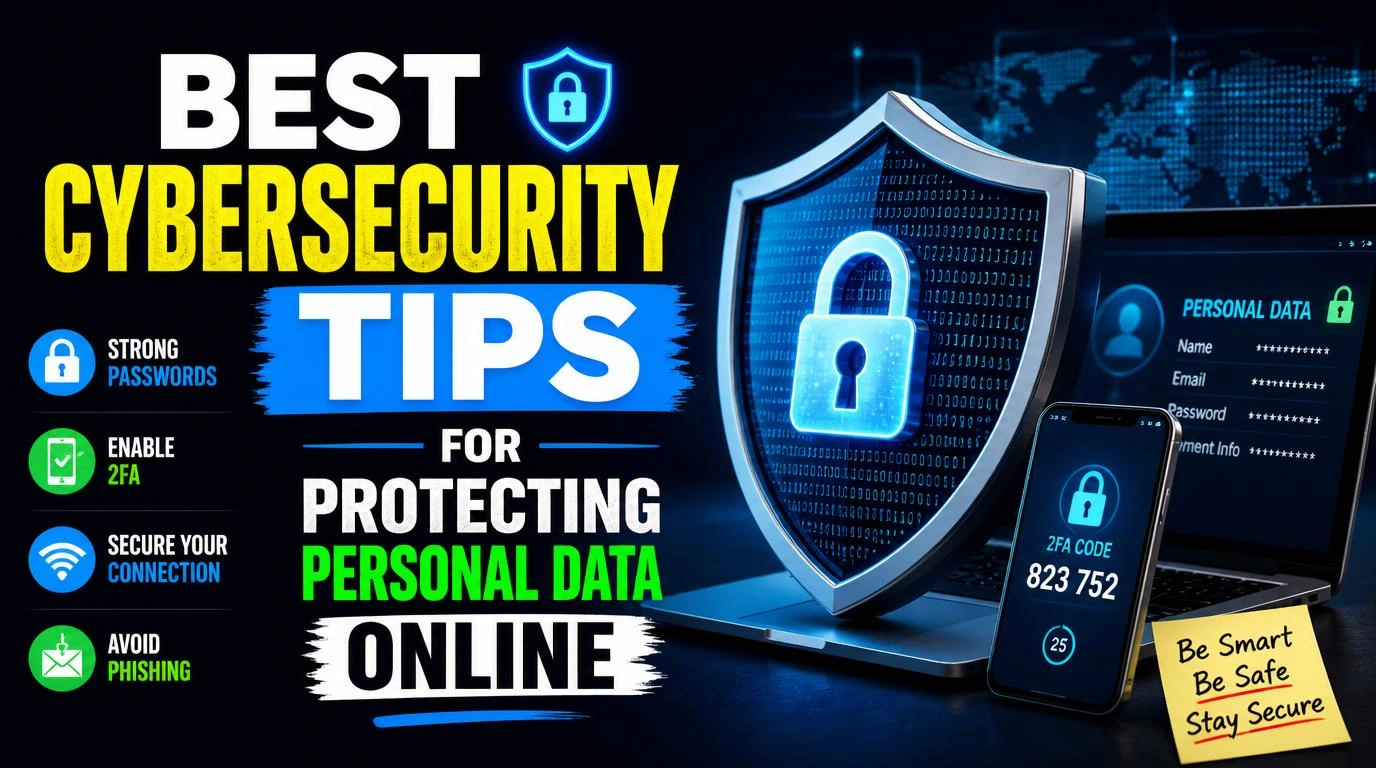
The best cybersecurity tips for protecting personal data online aren’t complicated, but most people skip them until something goes wrong. I know because I got hit with a credential stuffing attack two years ago that compromised three of my accounts in a single weekend. My bank flagged a $400 charge from a city I’ve never visited. That sick, panicky feeling? I never want it again. These are the steps I actually use now, every single day, to keep my personal data locked down.
1. Use a Password Manager (and Stop Reusing Passwords)
I used to have maybe four passwords that I rotated across everything. Email, banking, streaming, online shopping, all of it. When one leaked in a data breach, attackers tried it everywhere, and it worked on three sites.
A password manager like Bitwarden or 1Password generates and stores unique, complex passwords for every single account. You remember one master password. The manager handles the rest. I switched to Bitwarden’s free tier and it took me about an hour to set up. Now every password I have is a random 20+ character string that I couldn’t type from memory if I tried. That’s the point.
2. Turn On Two-Factor Authentication Everywhere
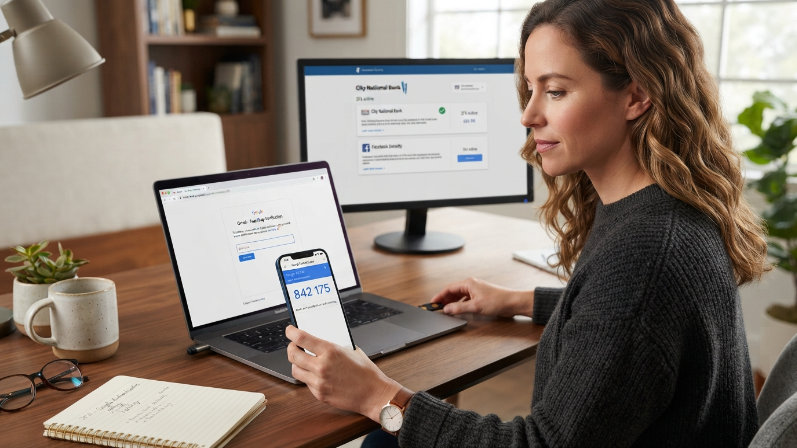
Passwords alone aren’t enough anymore. Two-factor authentication adds a second layer, usually a code from an app on your phone, that an attacker can’t access even if they steal your password.
I use Google Authenticator and Authy for my most sensitive accounts. SMS-based codes are better than nothing, but SIM-swapping attacks can intercept them. App-based or hardware key authentication is stronger. Start with your email, your bank, and your social media accounts. Those are the ones attackers target first because email access often lets them reset passwords on everything else you own.
3. Keep Your Software and Devices Updated
I’ll admit it. I used to be the person who clicked “Remind me later” on every update notification for weeks. Then I read about how the WannaCry ransomware attack in 2017 exploited a Windows vulnerability that Microsoft had already patched months earlier. People who updated were fine. People who didn’t got locked out of their own files.
Updates patch known security holes. When you delay them, you’re leaving a door wide open that hackers already know about. Turn on automatic updates for your operating system, your browser, and your phone. It takes zero effort after the initial setup. I set my laptop to update overnight so it never interrupts my work.
4. Learn to Spot Phishing Emails and Fake Links
Phishing is still the number one way attackers steal personal data, and the emails have gotten scary good. I received one last year that looked exactly like a PayPal security alert, complete with the logo, proper formatting, and a sense of urgency telling me to “verify my account immediately.”
The giveaway was the sender’s email address. It was something like support@paypa1-secure.com, with a number one instead of the letter L. Always check the sender address, hover over links before clicking, and never download attachments you weren’t expecting. When in doubt, go directly to the company’s website by typing the URL yourself instead of clicking any link in the email.
5. Use a VPN on Public Wi-Fi
Coffee shop Wi-Fi is convenient, but it’s basically an open invitation for anyone on the same network to snoop on your traffic. I travel a lot for work, and I use NordVPN whenever I connect to hotel, airport, or cafe networks.
A VPN encrypts your internet traffic so that even if someone intercepts it, they can’t read it. Free VPNs often come with trade-offs like data logging or slow speeds, so a paid option is worth the few dollars a month. If you do any banking, shopping, or email on public networks, a VPN isn’t optional. It’s a requirement.
6. Lock Down Your Social Media Privacy Settings
People share an alarming amount of personal information on social media without realizing how it gets used. Your birthday, your pet’s name, your high school mascot, these are also common security question answers.
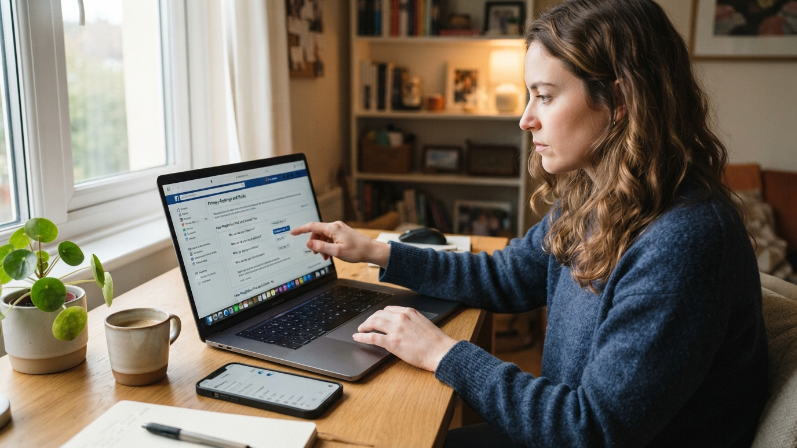
Go through your Facebook, Instagram, and LinkedIn privacy settings right now. Set your profiles to private or friends-only. Remove your phone number and birthday from public view. I did a full audit of my Facebook settings last year and found that my friend list, my check-ins, and my email address were all completely public. It took about fifteen minutes to fix, and it’s one of the simplest things you can do to protect your personal data online.
7. Review App Permissions on Your Phone
Your phone knows more about you than your closest friends do. And the apps on it often request permissions they don’t actually need. A flashlight app does not need access to your contacts and microphone.
Go to your phone’s settings and review what each app can access. On iPhone, check Settings > Privacy & Security. On Android, go to Settings > Apps > Permissions. Revoke anything that doesn’t make sense. I found a weather app that had access to my location 24/7 and my camera. A weather app. Seriously. Clean this up once a quarter and you’ll feel a lot better about what your phone is sharing.
8. Set Up Account Breach Alerts
You can’t fix a problem you don’t know about. Services like Have I Been Pwned let you enter your email address and instantly see if it appeared in any known data breaches. I check mine every few months, and I’ve been in seven breaches so far. Seven.
You can also sign up for free alerts so you get notified the moment your email shows up in a new breach. Google’s built-in security checkup (found at myaccount.google.com) does something similar for your Google account. Firefox Monitor is another solid option. Knowing early gives you time to change passwords before someone exploits the leaked data.
9. Be Careful with Cloud Storage and File Sharing
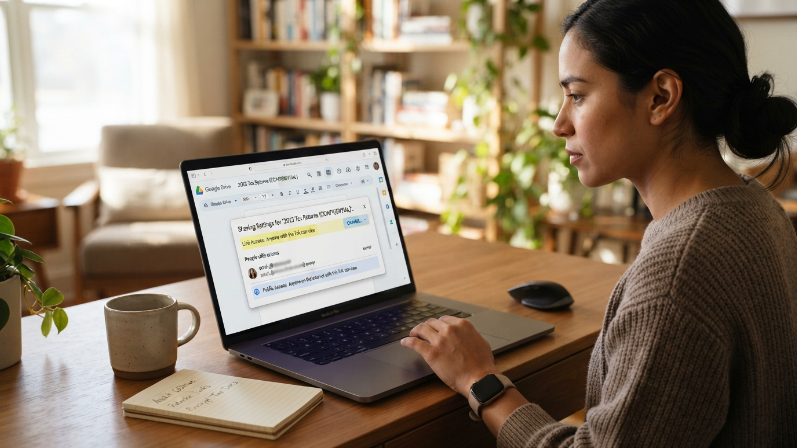
Storing files in Google Drive, Dropbox, or iCloud is convenient, but default sharing settings can expose sensitive documents to anyone with the link. I once shared a Google Doc with “anyone with the link” and forgot to change it back. That document sat publicly accessible for months.
Check your shared files regularly. In Google Drive, use the “Shared with me” and “Shared by me” filters to audit access. Remove old sharing permissions you no longer need. For truly sensitive files like tax documents or scanned IDs, consider encrypting them before uploading. Tools like Cryptomator add a layer of encryption on top of your cloud storage without making it hard to use.
10. Freeze Your Credit if You’re Not Actively Applying
This one isn’t technically a “cyber” tip, but it’s directly connected to protecting personal data online. A credit freeze prevents anyone from opening new accounts in your name, even if they have your Social Security number.
You can freeze your credit for free with Equifax, Experian, and TransUnion. I froze mine after my data showed up in the 2017 Equifax breach. When I need to apply for credit, I temporarily lift the freeze through their apps, and it takes about five minutes. It’s the single most effective thing I’ve done to prevent identity theft, and most people don’t even know it’s an option.
Frequently Asked Questions
What are the best cybersecurity tips for beginners?
Start with three things: get a password manager, turn on two-factor authentication for your email and bank accounts, and update your devices. These three steps block the vast majority of common attacks. You don’t need to be a tech expert. Just be consistent about the basics, and you’ll be ahead of most people.
Is antivirus software still necessary?
Windows Defender, which comes built into Windows 10 and 11, handles most threats well enough for everyday users. You don’t need to buy expensive antivirus suites anymore. Pair Defender with good habits like not clicking suspicious links, keeping your software updated, and using a password manager, and you’ll be well protected.
How often should I change my passwords?
You don’t need to change them on a schedule if you use strong, unique passwords and a password manager. Change a password immediately if the service reports a breach or if you get a suspicious login alert. Routine forced password changes often lead people to pick weaker, easier-to-remember passwords, which defeats the purpose.
Can a VPN make me completely anonymous online?
No. A VPN hides your traffic from your internet provider and anyone on your local network, but it doesn’t make you invisible. Your VPN provider can still see your activity, which is why choosing a reputable one with a no-logs policy matters. For full anonymity, you’d need additional tools, but for most people a good VPN provides plenty of protection.
What should I do if my data shows up in a breach?
Change the password for that account immediately. If you used the same password anywhere else, change those too. Turn on two-factor authentication if you haven’t already. Monitor your bank and credit card statements for anything unusual. If sensitive data like your Social Security number leaked, consider freezing your credit with all three bureaus.
Conclusion
Protecting your personal data doesn’t require a computer science degree or expensive tools. It just takes a handful of smart habits applied consistently. I learned most of these lessons the hard way, and I’d rather you didn’t have to. Which of these tips are you going to set up first?